
ad
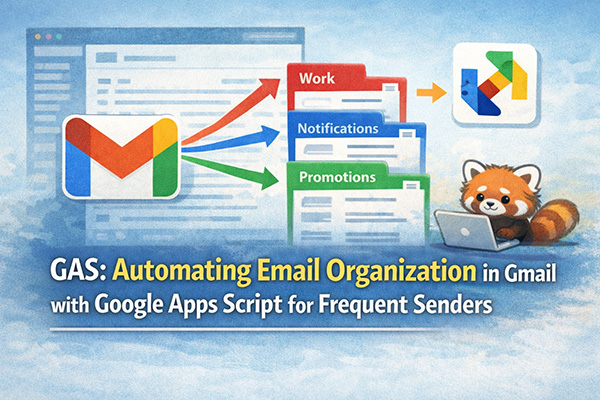
Overview
“Streamline Your Gmail: Auto-label Emails from Frequent Senders using Google Apps Script”
Discover a script that helps you sift through the mountain of emails and locate the information you need promptly.
Explanation and Purpose
Have you ever felt the need to manage emails from specific senders more efficiently amidst receiving a plethora of emails daily for your tasks? This script caters to such needs by automatically labeling emails coming from domains that contact you frequently.
Step-by-step Guide
Explanation of the Code
This script scans the emails in your Gmail inbox and counts the emails based on the sender’s domain. It then automatically creates and applies labels to domains from which a certain number of emails have been received.
Safety Considerations
This script only extracts the domain information of the senders without reading the content of the emails. However, permissions will be requested when utilizing triggers and Apps Script. Please refer to Google’s official documentation for detailed information on security.
"If you wish to return the emails after script execution, you can use the following steps:
1. Select all emails within the specified labels.
2.Move them back to the inbox.
3.Delete the labels.
Additionally, archived emails can also be checked under the "All Mail" section."
Sample Script
function labelAndArchiveFrequentSenders() {
  var threads = GmailApp.getInboxThreads();
  var sendersCount = {};

  // 1. Analyze inbox threads to count the number of emails from each domain.
  threads.forEach(function(thread) {
    var messages = thread.getMessages();
    messages.forEach(function(message) {
      var fromAddress = message.getFrom();
      // Extract the domain portion from an email address.
      var domainMatch = fromAddress.match(/@([^>]+)/);
      if (domainMatch) {
        var domain = domainMatch[1].replace('>', '').trim();
        sendersCount[domain] = (sendersCount[domain] || 0) + 1;
      }
    });
  });

  // 2. Execute a process for domains that meet or exceed a specified threshold.
  var threshold = 5;

  for (var domain in sendersCount) {
    if (sendersCount[domain] >= threshold) {
      var label = GmailApp.getUserLabelByName(domain);
      if (!label) {
        label = GmailApp.createLabel(domain);
      }

      // 3. Search for emails from the target domain(s) within the inbox.
      // Apply labels and simultaneously archive (delete from the inbox).
      var searchQuery = 'label:inbox from:@' + domain;
      var targetThreads = GmailApp.search(searchQuery);

      targetThreads.forEach(function(thread) {
        thread.addLabel(label);      // Apply labels.
        thread.moveToArchive();      // Archive from the inbox.
      });
    }
  }
}Thank you
ad




This post is an updated version of a script written in 2023. The change is that the script no longer leaves emails in the inbox after applying labels. Instead, it moves the emails to a label folder. This improves the efficiency of email checking.