USB Devices Disconnected After Sleep (Resolved by Disabling USB Selective Suspend)
⚠️
この記事は 1 年以上前の記事の為、現在のシステムにはそぐわない内容の可能性があります。 This article was written more than 1 years ago, so the content may no longer be relevant to the current system.
When Windows goes into sleep mode due to inactivity, USB-connected devices may get disconnected and become unusable once the system wakes up. This can be especially common with laptops. Below are some potential fixes related to power settings that might help prevent this issue.Some PC manufacturers and models may hide USB selective suspend.We will post a separate post at a later date.
Points to Check
First, review the Windows power options. When using a laptop or a device where power consumption is a concern, you may switch to a balanced or manufacturer-specific power-saving mode. These power plans often include USB-related power-saving settings, which can cause problems when the computer goes to sleep.
Step-by-Step Guide
Open Power Options
Click on the Start menu (Windows logo).
Click on the Settings (gear icon)
On Windows 10, choose Settings.
On Windows 11, choose Settings > System.
Select Power & Sleep (or Power management, depending on the version).
Click on the Additional power settings link, usually located to the right or at the bottom of the window.
On older versions of Windows, you can navigate to Control Panel > Hardware and Sound > Power Options.
Change Plan Settings
In the Power Options window, locate your active power plan (e.g., “Balanced” or “Power saver”).
Click on Change plan settings next to that plan.
Open Advanced Power Settings
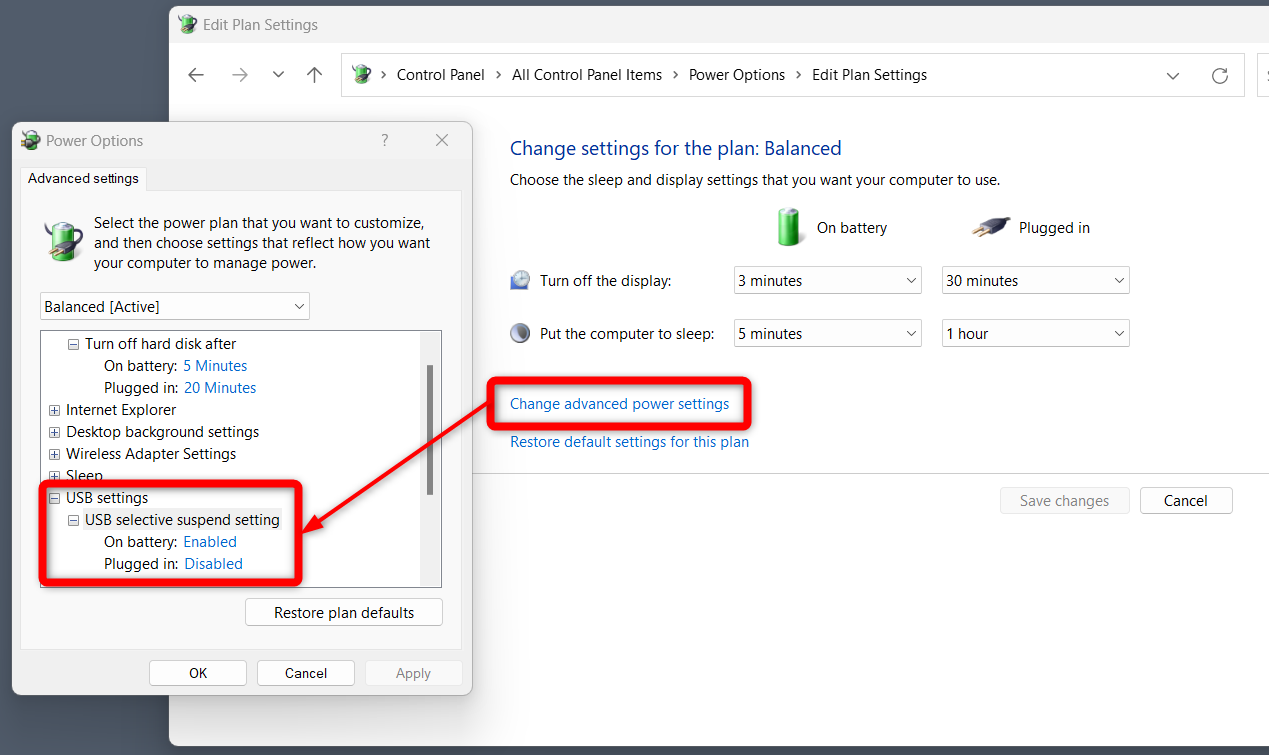
In the Edit Plan Settings window, click on Change advanced power settings.
A new window titled Power Options (Advanced settings) will appear.
Disable USB Selective Suspend
In the Advanced settings tab, find and expand USB settings.
Expand USB selective suspend setting.
Under Settings, switch to Disabled.
For laptops, you may see two options here: On battery and Plugged in. Set both to Disabled.
Click OK or Apply to confirm your changes.
Save the Settings and Test
Once you’ve confirmed your settings in the Power Options (Advanced settings) window, click OK to close it.
Go back to the previous screen and click Save changes.
Your USB selective suspend is now disabled.
Let your computer go to sleep, then wake it up to confirm whether USB devices remain connected.
Additional Note: Device Manager Power Management
If the above steps do not resolve the issue, also check the following:
Right-click the Start menu and select Device Manager (or search for “Device Manager”).
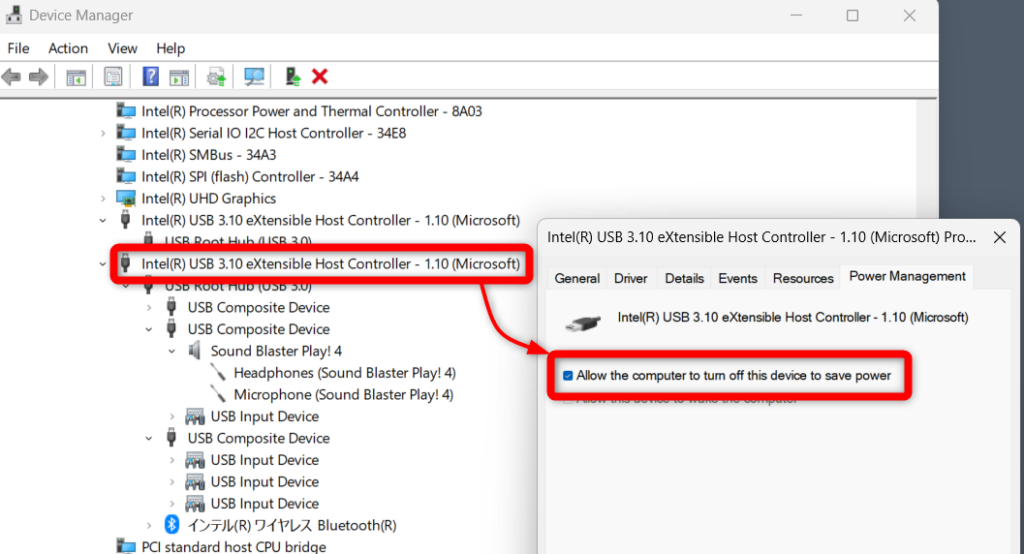
Locate the problematic USB device (e.g., “USB Root Hub” or a specific USB device), right-click it, and choose Properties.
Go to the Power Management tab.
Uncheck Allow the computer to turn off this device to save power.
Click OK.
If you have trouble identifying the device, the following is a way to view it. Select Devices by connection from the Device Manager View. Devices will be displayed according to their physical connection. You can configure the USB Host Controller itself at the root of the target device.
By disabling this option, you prevent Windows from cutting power to the USB device during sleep or other power-saving modes.
Summary
Disable USB selective suspend from Power Options.
If needed, review the Power Management settings for the affected device in Device Manager to ensure Windows doesn’t turn off the device to save power.
USB Devices Disconnected After Sleep (Resolved by Disabling USB Selective Suspend)
🍪
Support Our Content
To keep this site free and high-quality, we use cookies for advertising. While you can opt-out, keeping them On directly supports our revenue and helps us continue writing. We value your privacy and thank you for your support! If you decline, you will still see ads, but they will not be personalized because there will be no cookies.