Overview
Sometimes an accidental key press makes Windows zoom in and you don’t know how to get back. I’ve run into this on the sign-in screen myself. The cause is usually Magnifier being turned on. Pressing Windows key + Plus (+) or Windows key + Minus (−) turns Magnifier on and zooms in or out.
Trouble example
The screen is zoomed in a lot by accident. You can’t sign in, it’s hard to operate menus, and you can’t get it back to normal.

How to fix it
The zoom level is probably way too high. Try one of these:
- If you see the Magnifier toolbar, click Minus (−) until it returns to 100%.
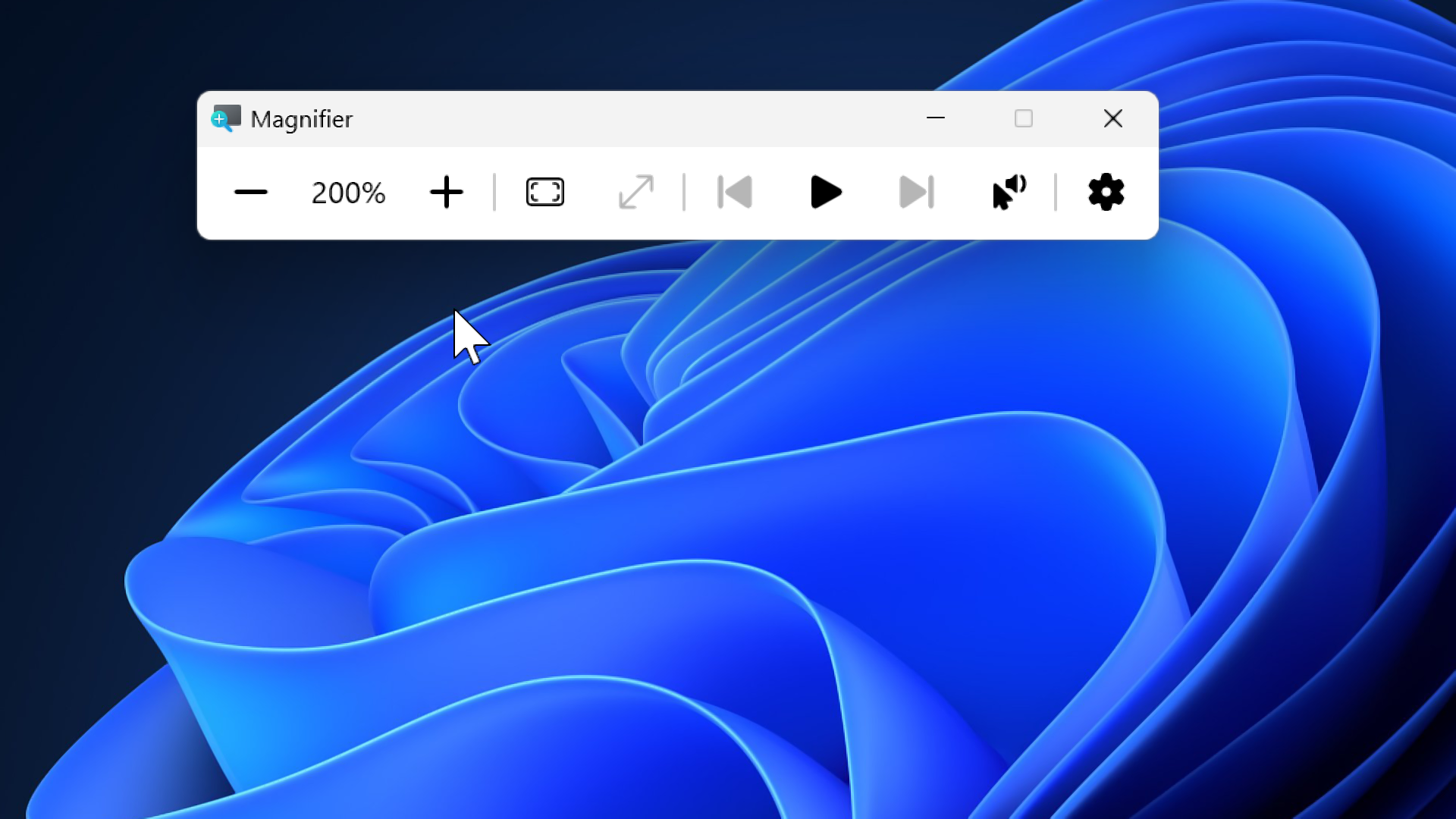
- Press Windows key + Minus (−) repeatedly to zoom out to 100%.
Tip for the sign-in screen: Click the screen once to focus the password box, then use Windows key + Minus (−) to zoom out.