ad
Overview
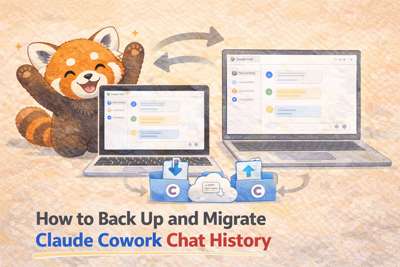
Claude Cowork stores your chat history in a specific folder on your computer. You can back it up or migrate it to another PC — even from Mac to Windows — simply by copying that folder.
⚠️ Important Warnings Before You Start
- Data will be overwritten. If the destination folder already contains chat history, pasting will overwrite it. Back up the destination folder first if needed.
- Do not proceed while Claude Cowork is running. Copying or pasting files while the app is open may cause data corruption. Make sure Claude Cowork is fully closed before you begin.
Where Chat History Is Stored
Mac
/Users/YourUsername/Library/Application Support/Claude/local-agent-mode-sessionsTo open this folder in Finder, go to Go → Go to Folder in the menu bar and paste the path above.
Windows
C:\Users\YourUsername\AppData\Local\Packages\Claude_pzs8sxrjxfjjc\LocalCache\Roaming\Claude\local-agent-mode-sessionsAppData is a hidden folder. Paste the path directly into the Explorer address bar, or enable Show hidden files in the View settings.
How to Back Up
- Copy the entire
local-agent-mode-sessionsfolder. - Save it to an external drive or cloud storage.
That's it — no special tools required.
How to Migrate to Another PC (e.g., Mac → Windows)
- Copy the
local-agent-mode-sessionsfolder from the source machine (Mac). - Paste it into the corresponding folder on the destination machine (Windows).
- Restart Windows.
- Launch Claude Cowork — your chat history will appear.
Tip: The restart is important. It allows Claude Cowork to properly detect and load the folder contents.
Summary
| Task | Steps |
|---|---|
| Backup | Copy the folder and save it somewhere safe |
| Restore | Paste the folder back and restart |
| PC Migration (Mac → Windows) | Copy → Paste → Restart |
Managing just one folder is all it takes to keep your chat history safe and portable. Regular backups are recommended.