
Overview
Windows has several shortcuts that can instantly boost your productivity once you know them.
One that many people don’t know is:
Windows key + . (period)
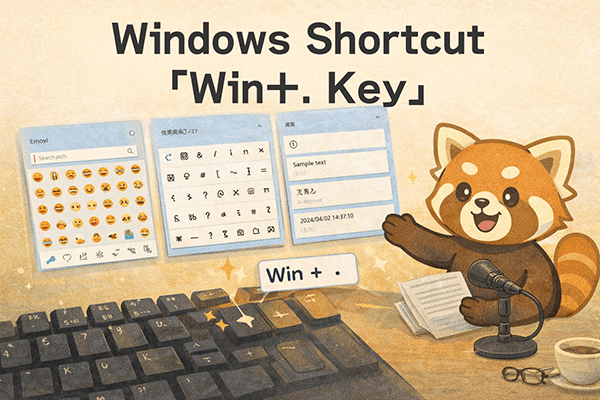
Pressing this shortcut opens a panel that lets you:
- Insert emojis
- Insert symbols
- Review and reuse your clipboard history
—all without touching the mouse.
It’s a quiet but powerful helper you can use anywhere you type: chat, email, documents, and quick notes.
This is especially helpful if you:
- Copy and paste repeatedly
- Write messages in Slack, Teams, or email
- Use symbols or emojis often
You’ll notice real time savings.
How to Use It
1) Open the panel
Press Windows key + . (period).
The input panel appears at the bottom of the screen.
2) Insert emojis
You’ll land on the Emoji tab first. You can:
- Browse by category
- Type a keyword in the search box
- Navigate and select using only the keyboard
It’s handy when you want to soften the tone in chat or internal messages.
3) Insert symbols and special characters
Switch tabs to insert:
- Arrows
- Math symbols
- Currency symbols
- Full-width/half-width special characters
If you keep searching “how to type this symbol,” this tab will save you time.
4) Use clipboard history (first-time setup required)
The panel also includes your clipboard history.
On first use, follow the prompt to enable it.
Once enabled, you can:
- Reuse not just your last copy, but earlier copied items
- Paste text, URLs, commands, and more as many times as you like
It also helps prevent “I overwrote what I copied a moment ago.”
Summary
Windows key + . takes almost no effort to learn yet delivers long-term benefits.
It requires no extra software—just built-in Windows features.
If you use Windows but haven’t fully optimized your workflow, give this a try.
Accuracy note (optional): On current Windows, Windows + . opens the emoji/symbols/kaomoji panel. Clipboard history is typically opened with Windows + V. If you want, I can adapt the article to present both shortcuts clearly.