ad
Overview
Every time a major Chrome security vulnerability makes headlines, it becomes a trending search topic — yet many people aren’t sure what to actually do about it. “What’s a vulnerability?” “How do I update Chrome?” These are common questions, and the answer is simpler than you might think.
This article explains why Chrome security updates matter and walks you through the exact steps to update Chrome — no technical knowledge required.
Key Points
- Chrome vulnerabilities are actively exploited by hackers, so leaving your browser unpatched is a real risk
- Updating Chrome takes less than 3 minutes and requires no technical skills
- Many people miss the final step: you must restart Chrome for the update to take effect
- Don’t forget to update Chrome on your smartphone (Android and iPhone) too
Steps
Desktop — Windows & Mac
- Open Chrome on your computer
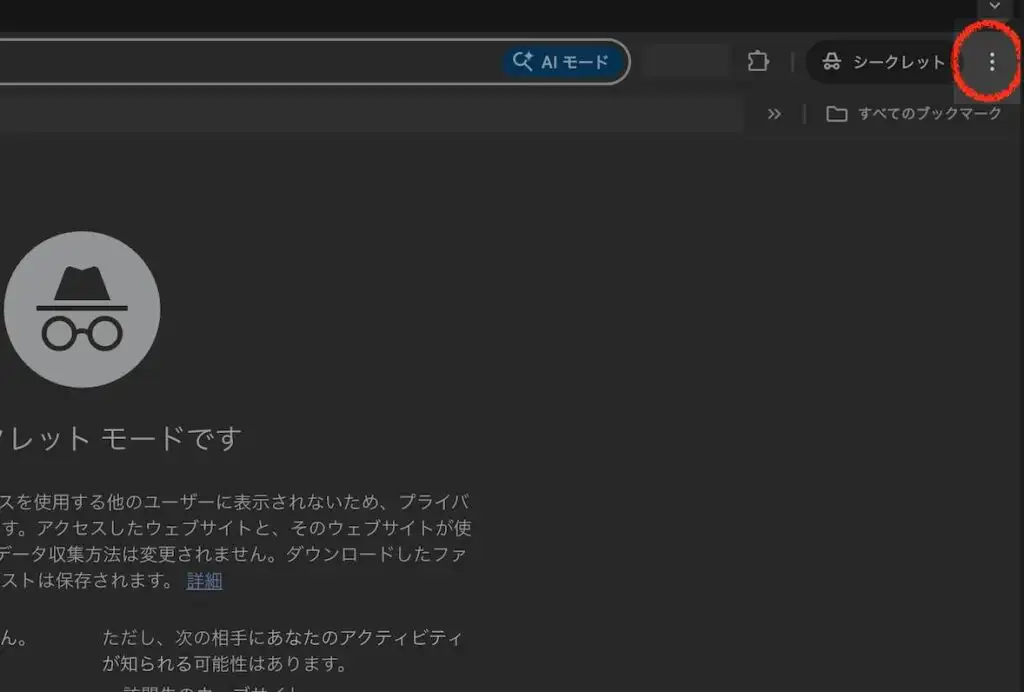
- Click the ⋮ icon (three vertical dots) in the top-right corner of the browser
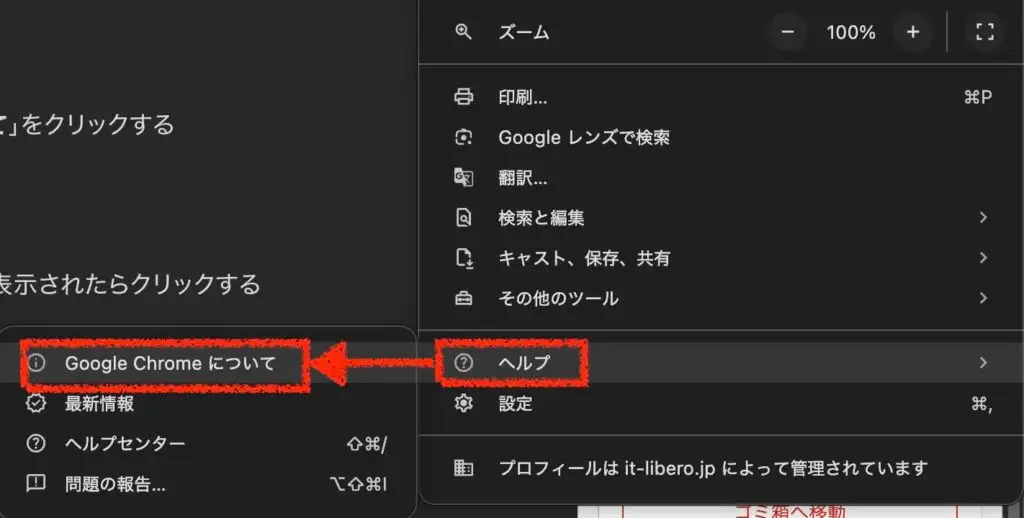
- Hover over Help, then click About Google Chrome
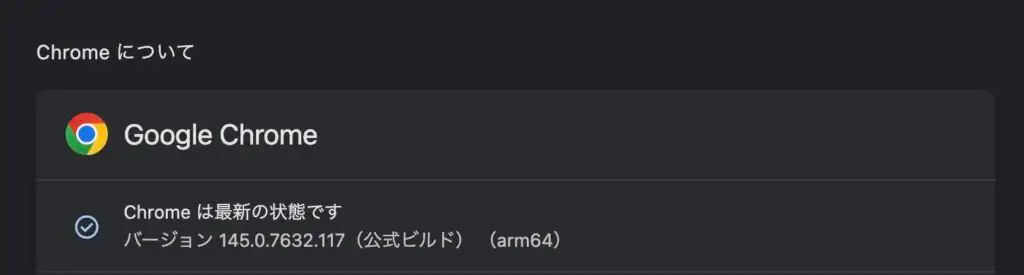
- Chrome will automatically check for updates. If an update is available, click the Update Google Chrome button
If you see “Google Chrome is up to date,” you’re already on the latest version — no action needed.
- Once the update downloads, click the Relaunch button
⚠️ The update won’t take effect until you relaunch Chrome. Don’t worry — all your open tabs will be automatically restored after restarting.
- After relaunching, go back to the same screen and check your version number. If it’s equal to or higher than the version mentioned in the news, you’re protected
Smartphone — Android
- Open the Google Play Store
- Tap your profile icon in the top-right corner
- Tap Manage apps & device
- If Chrome appears under “Updates available,” tap Update
If Chrome doesn’t appear in the list, search for it directly. If you only see an Open button, Chrome is already up to date.
Smartphone — iPhone / iPad
- Open the App Store
- Tap your profile icon in the top-right corner
- Scroll down to find Chrome. If you see an Update button next to it, tap it
If you only see an Open button, your Chrome is already up to date.
Frequently Asked Questions
Q. Will updating Chrome delete my data?
No. Your bookmarks, saved passwords, and open tabs are all preserved during an update.
Q. Can I skip the restart?
The update downloads in the background, but it doesn’t become active until Chrome restarts. If you’re updating because of a security vulnerability, please restart right away.
Q. Doesn’t Chrome update itself automatically?
Chrome does update automatically in most cases, but if you leave it running for a long time without restarting, the update may be delayed. When you see vulnerability news, it’s worth checking manually.
Q. How do I know what version I’m currently on?
Go to About Google Chrome — your version number is displayed there (e.g., “Version 133.0.6943.126”). Compare it to the version mentioned in the security news.
Summary
| Action | Time needed |
|---|---|
| Open the menu and check for updates | ~30 seconds |
| Download the update | ~1–2 minutes |
| Restart Chrome | ~30 seconds |
| Total | ~3 minutes |
When you see Chrome vulnerability news, take 3 minutes right now to update. In security, “I’ll do it later” is always the wrong answer.
ad