ad
Overview
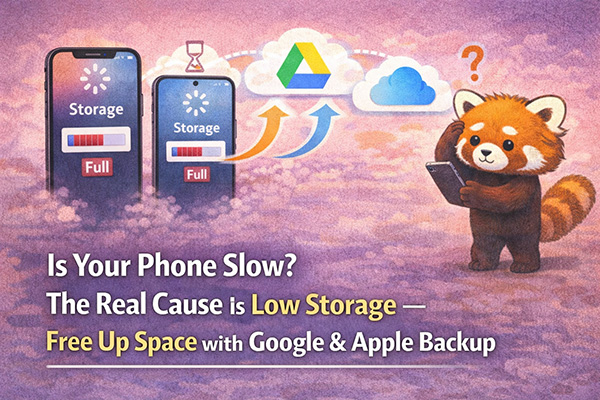
Has your smartphone been feeling sluggish lately? Apps taking too long to open, or the screen freezing up? You're not alone — and the fix might be simpler than you think.
In many cases, the reason your smartphone slows down is low storage space. As photos, videos, and apps pile up over time, your phone's storage fills up and it starts to struggle.
In this guide, we'll explain why low storage causes slowdowns and walk you through, step by step, how to back up your photos and files to Google or Apple's free cloud services — so you can free up space and get your phone running smoothly again.
Why Does Low Storage Make Your Phone Slow?
When your smartphone runs apps, it needs a temporary workspace in memory. When regular memory (RAM) runs out, your phone uses available storage space as "virtual memory" to keep things running.
When storage is nearly full, there's no room left for this virtual memory — and your phone starts to lag, freeze, or crash.
The cycle looks like this: Low storage → Less virtual memory → Slow, sluggish phone
Photos and videos are often the biggest culprits since they take up a lot of space. The good news: you can move them to the cloud for free and reclaim that storage.
Step 1: Check How Much Storage You Have Left
On Android
The location of the storage settings screen varies depending on your phone's manufacturer. To avoid confusion, we recommend using Google's "Files" app, which shows your storage usage the same way on every Android device.
Don't have the Files app?
You can install it for free from the Google Play Store:
→ Install Files by Google
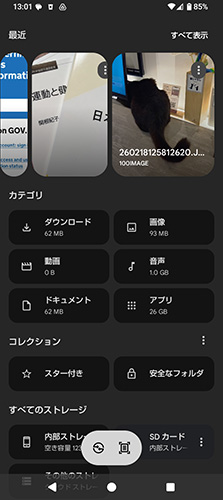
- Open the Files app on your phone
- Tap the Clean tab at the bottom of the screen
- Your storage usage is displayed at the top. If your free space is less than 10–20% of total, it's time to free some up
On iPhone
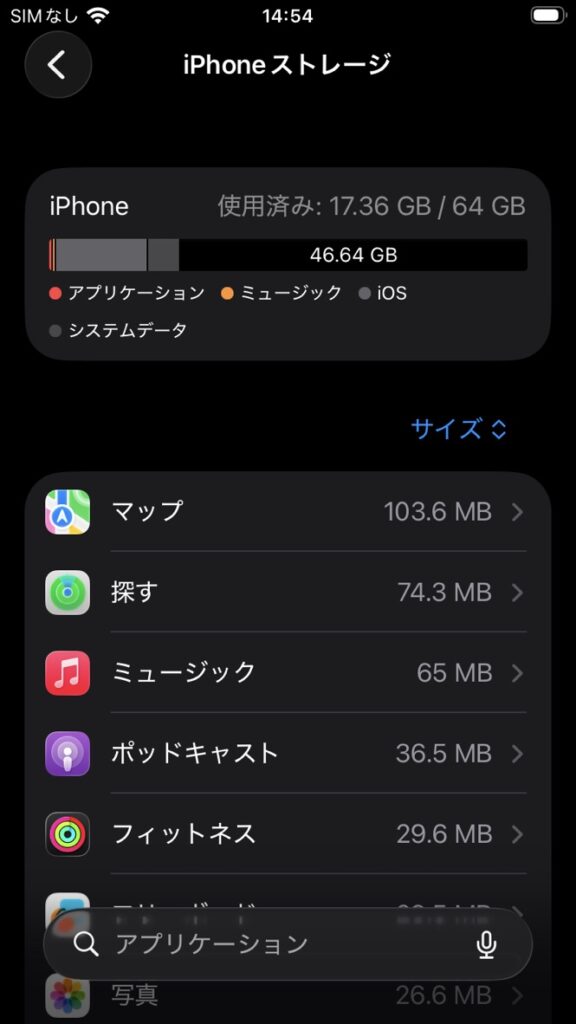
- Open the Settings app
- Tap General
- Tap iPhone Storage
- You'll see a breakdown of what's using your storage. Photos and videos are usually the biggest items
Step 2 (Android): Back Up Photos & Videos with Google Photos
If you have an Android phone, Google Photos lets you automatically back up all your photos and videos to Google's cloud servers — for free.
What is Google Photos?
It's Google's free photo and video storage service. You get 15 GB of free storage with any Google account, and your backed-up photos are accessible from any device.
2-1. Turn On Backup in Google Photos
- Open the Google Photos app (install it from the Play Store if needed)
- Tap your profile icon in the top-right corner
- Tap Photo settings
- Tap Backup
- Make sure Backup is turned On. If it's off, tap to enable it
- Wait for the backup to complete — this may take a few minutes. Using Wi-Fi is recommended to avoid using mobile data
2-2. Delete Backed-Up Photos from Your Phone
Once backup is complete, you can delete the local copies from your phone to free up space.
- Open Google Photos and tap your profile icon
- Tap Photo settings → Free up space on this device
- You'll see how many items can be deleted. Review and tap Delete
✅ Don't worry — your photos are safe! Even after deleting them from your phone, all your backed-up photos and videos will still be available in the Google Photos app or at photos.google.com from any device.
Step 3 (Android): Back Up Documents & Files with Google Drive
For documents, PDFs, and other files (not photos), use Google Drive to store them in the cloud.
What is Google Drive?
Google's online file storage service. You get 15 GB free (shared with Google Photos) with a Google account.
How to Upload Files to Google Drive
- Open the Google Drive app
- Tap the + (Add) button in the bottom-right corner
- Tap Upload
- Select the file(s) you want to back up
- Once uploaded, you can safely delete the originals from your phone
Step 2 (iPhone): Back Up Photos & Videos with iCloud Photos
If you have an iPhone, iCloud Photos automatically backs up your photos and videos and can replace the full-resolution copies on your phone with smaller optimized versions — freeing up significant space.
What is iCloud?
Apple's cloud storage service. You get 5 GB free with an Apple ID. Additional storage plans are available if needed.
2-1. Turn On iCloud Photos and Optimize Storage
- Open the Settings app
- Tap your name (Apple ID) at the top of the screen
- Tap iCloud
- Tap Photos
- Turn on iCloud Photos
- Select Optimize iPhone Storage
✅ What does "Optimize iPhone Storage" do?
It stores full-resolution photos and videos in iCloud and keeps only smaller, optimized versions on your iPhone. This can free up gigabytes of space. When you want to view or download a photo in full resolution, your phone will retrieve it from iCloud automatically over Wi-Fi.
- Wait for iCloud to finish uploading. Use Wi-Fi for faster backup
2-2. Check Your iCloud Storage
- Go to Settings → tap your name → iCloud
- Your iCloud usage is displayed at the top. If you're running low on iCloud space, consider upgrading your storage plan
Step 3 (iPhone): Offload Unused Apps
On iPhone, you can "offload" an app to free up space while keeping its data. If you reinstall the app later, your data will come back.
- Go to Settings → General → iPhone Storage
- Tap an app that's using a lot of space
- Tap Offload App
- Confirm by tapping Offload App in the dialog
After the Cleanup: Check Your Storage Again
Once you've backed up and deleted files, check your storage one more time:
- Android: Settings → Storage
- iPhone: Settings → General → iPhone Storage
If your free space has increased — great job! Your phone should feel noticeably faster and more responsive.
Summary
| Device | Backup Service | Key Steps |
|---|---|---|
| Android | Google Photos / Google Drive | Enable Backup → Use "Free up space" |
| iPhone | iCloud Photos | Enable iCloud Photos → Select "Optimize iPhone Storage" |
The next time your phone feels slow, check your storage first. Backing up photos and videos to the cloud and deleting local copies is one of the quickest and most effective ways to speed up your phone — without spending any money.
Make it a habit to check your storage every few months and you'll keep your phone running smoothly for years to come.
Found this guide helpful? Share it with a friend or family member who's been struggling with a slow phone!
ad